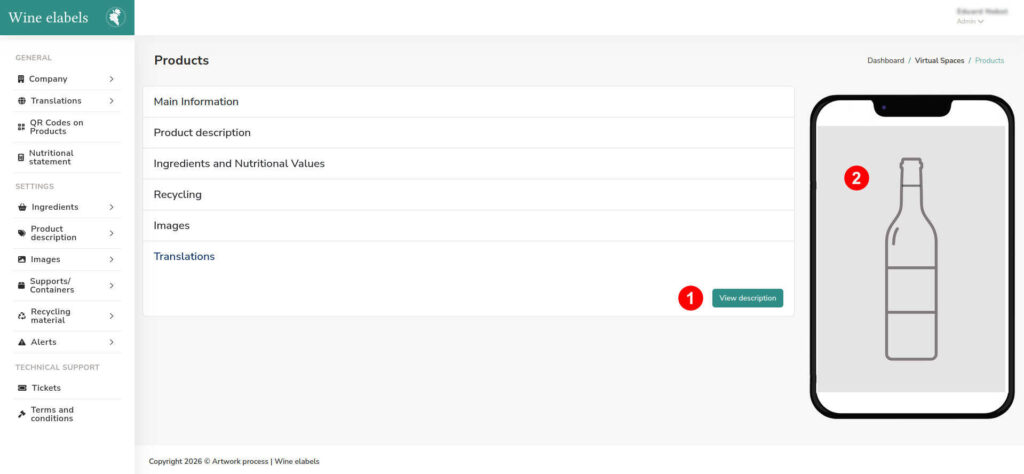
QR in products
To create a new QR, access the side menu located on the left side of the screen and select the option “QR in products” (1). Once inside, choose the corresponding brand (2) and, next, select the associated product (3).
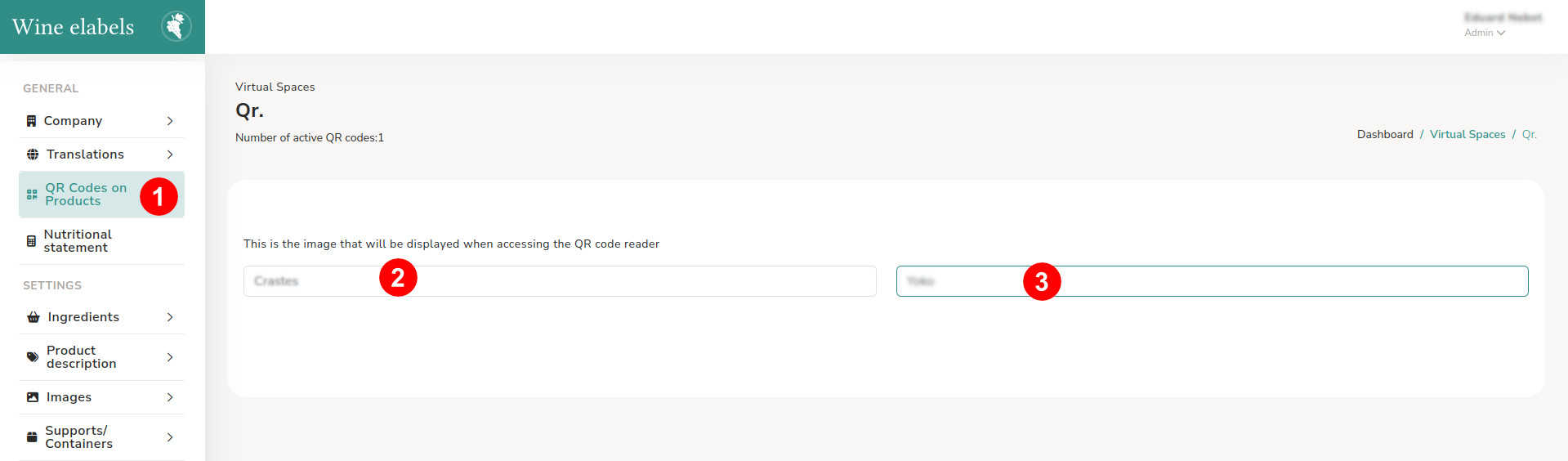
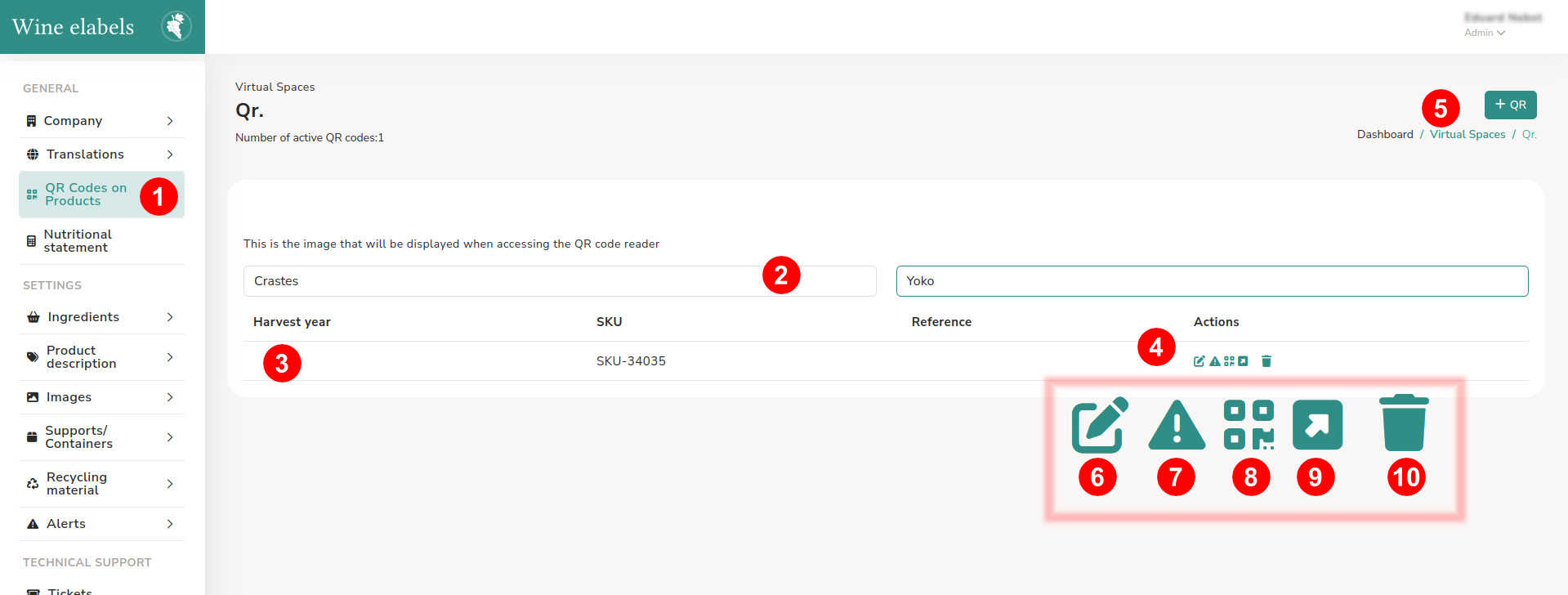
Once the brand and product (2) have been selected, the “Add QR” button (5) will be enabled. In the list of items, relevant information such as the vintage of the wine, the SKU and the barcode will be displayed
- Edit QR (6)
- Add health alert (7)
- Download QR (8)
- View the virtual space of the wine (9)
- Delete (10)
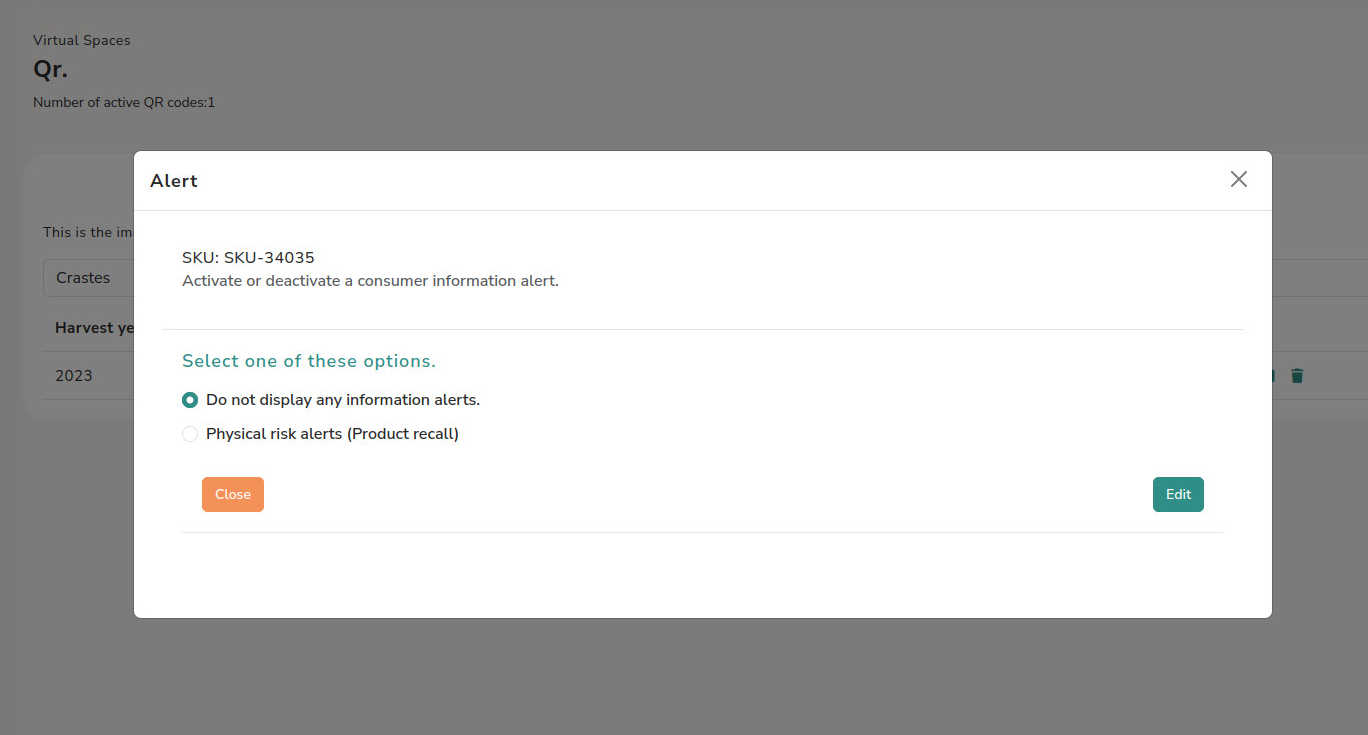
Add health alert
When selecting this option, a pop-up window will open where you can choose one of the available alerts. Each user can create as many health alerts as needed; all of them will be displayed in this section for selection and management.
In the virtual space of the wine the selected option will be displayed automatically, reflecting the changes immediately.

When saving the health alert, the corresponding icon will be displayed in red, visually indicating that the product has an active alert.
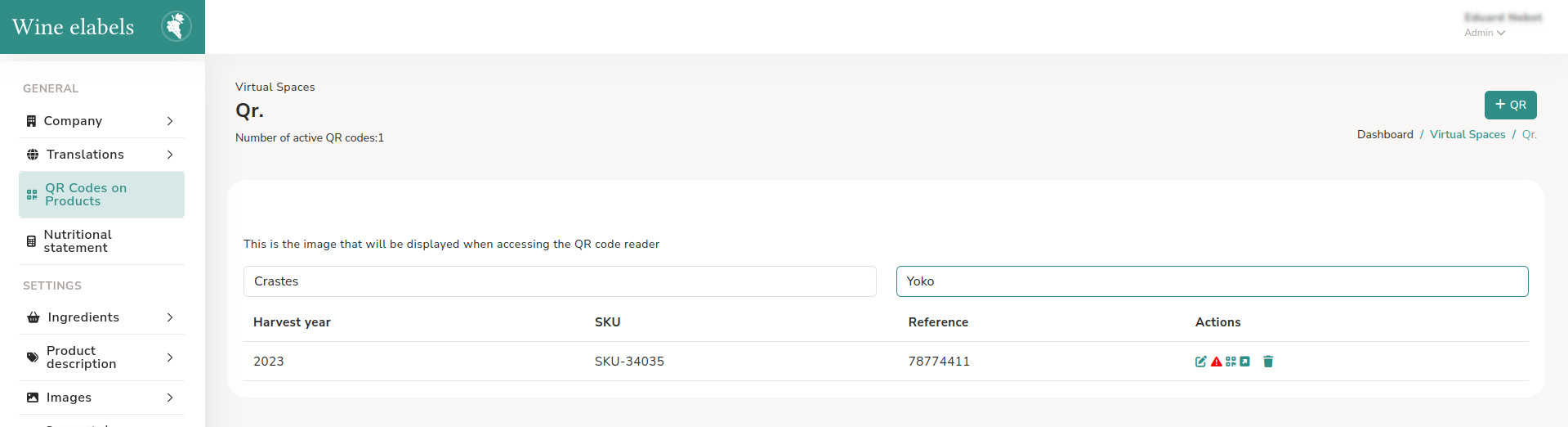
Download Qr
It is possible to download the QR code in SVG (vectorial) format and in PNG format. After downloading any of the versions, it is recommended to check its correct reading before proceeding to print it.
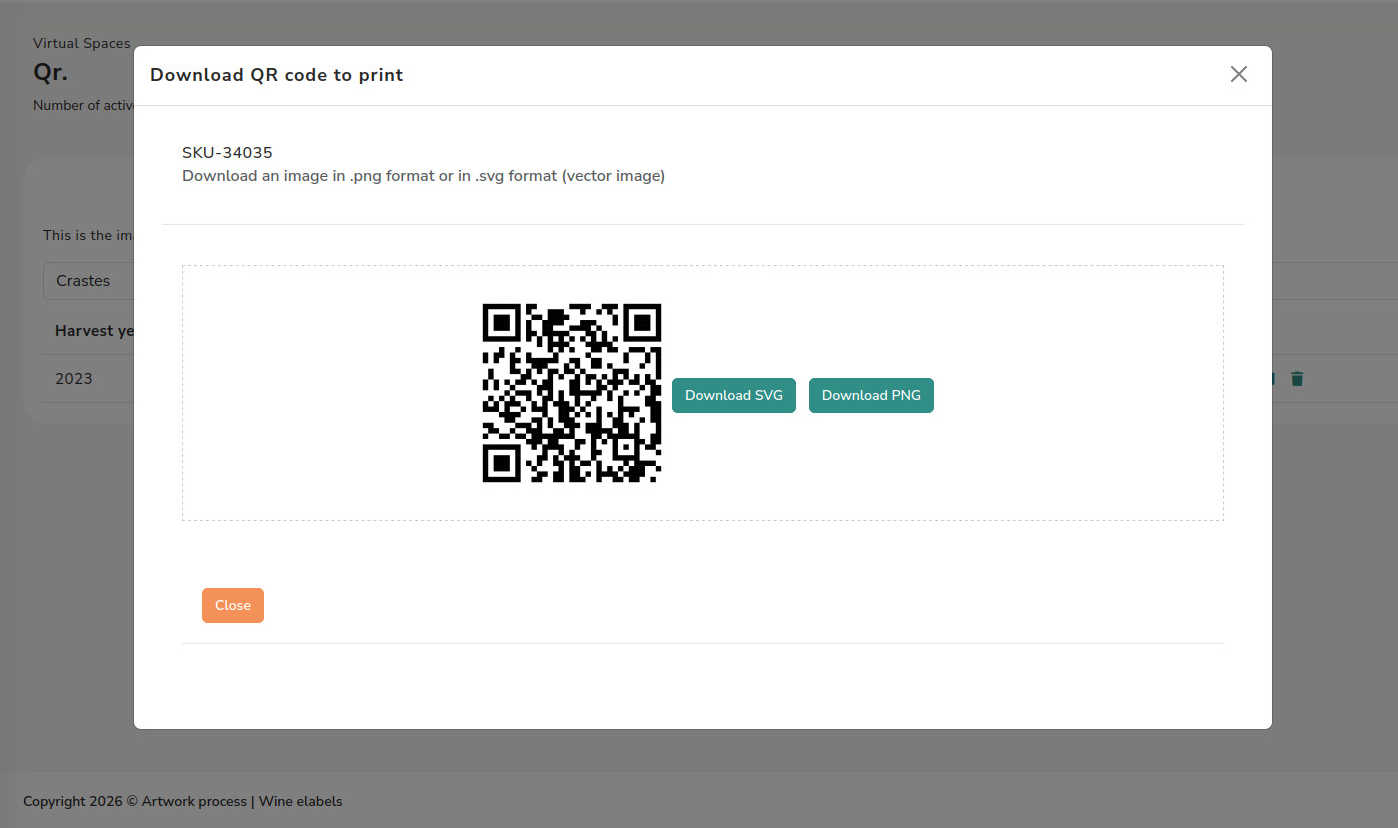
Add a QR
When starting the process, a pop-up window will be displayed where you can enter the SKU (1) and the barcode (2). These fields are optional; if they are not completed, the system will automatically generate a default SKU.
When pressing “Add” (3), the new virtual space will be created, remaining available for configuration and content editing.
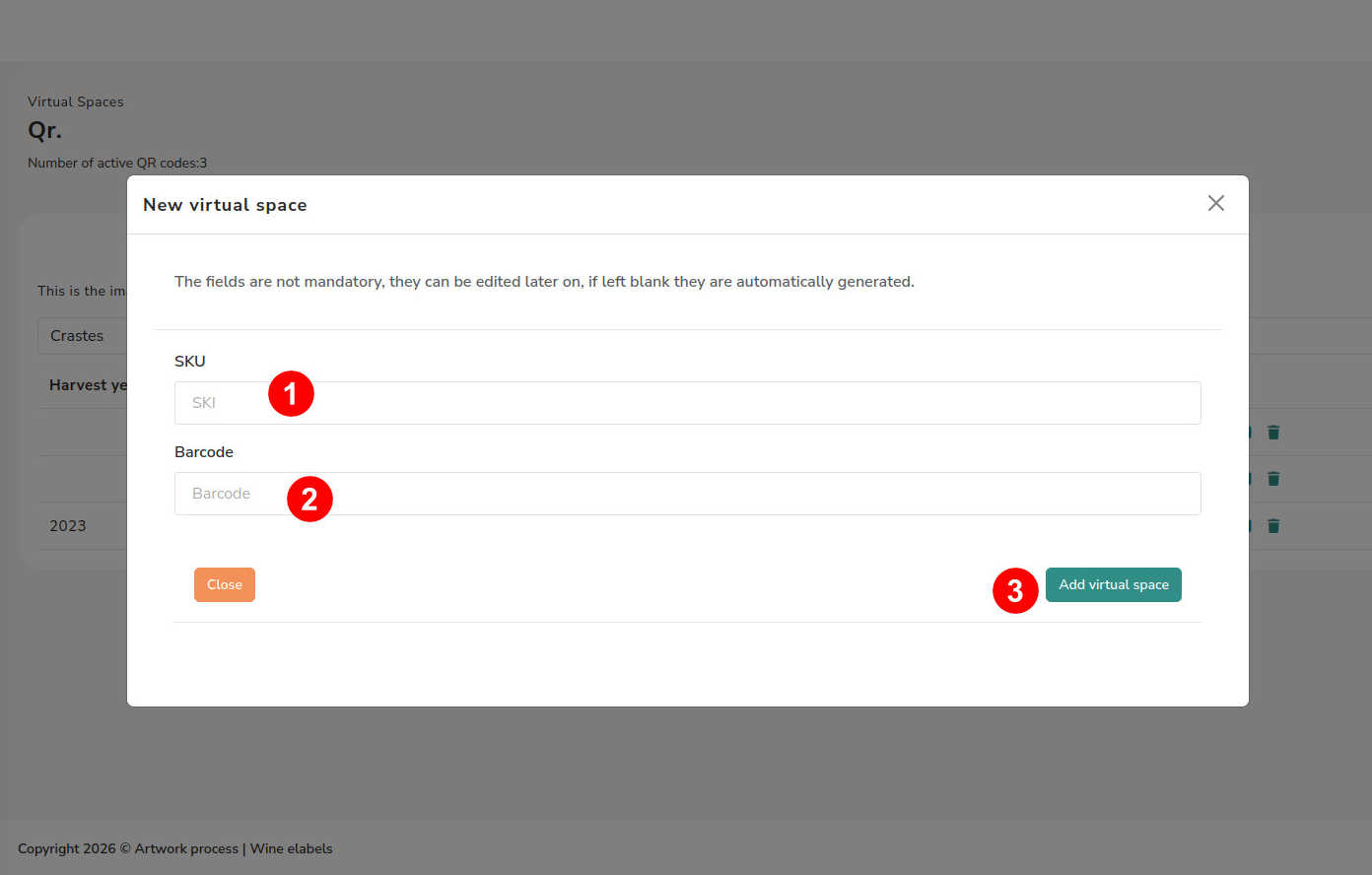
Edit the virtual space
Main information
In this block, the main data of the product is managed:
- SKU (1)
- Vintage of the wine (2) – selectable via dropdown list
- Barcode (3)
- Batch (4)
- Product image
To upload the image, you must select it from your computer (6). In this same section, the recommended formats and sizes are shown to ensure correct viewing (5).
Once the information is completed or modified, press the button “Save changes” (7) to apply the updates.
Product description
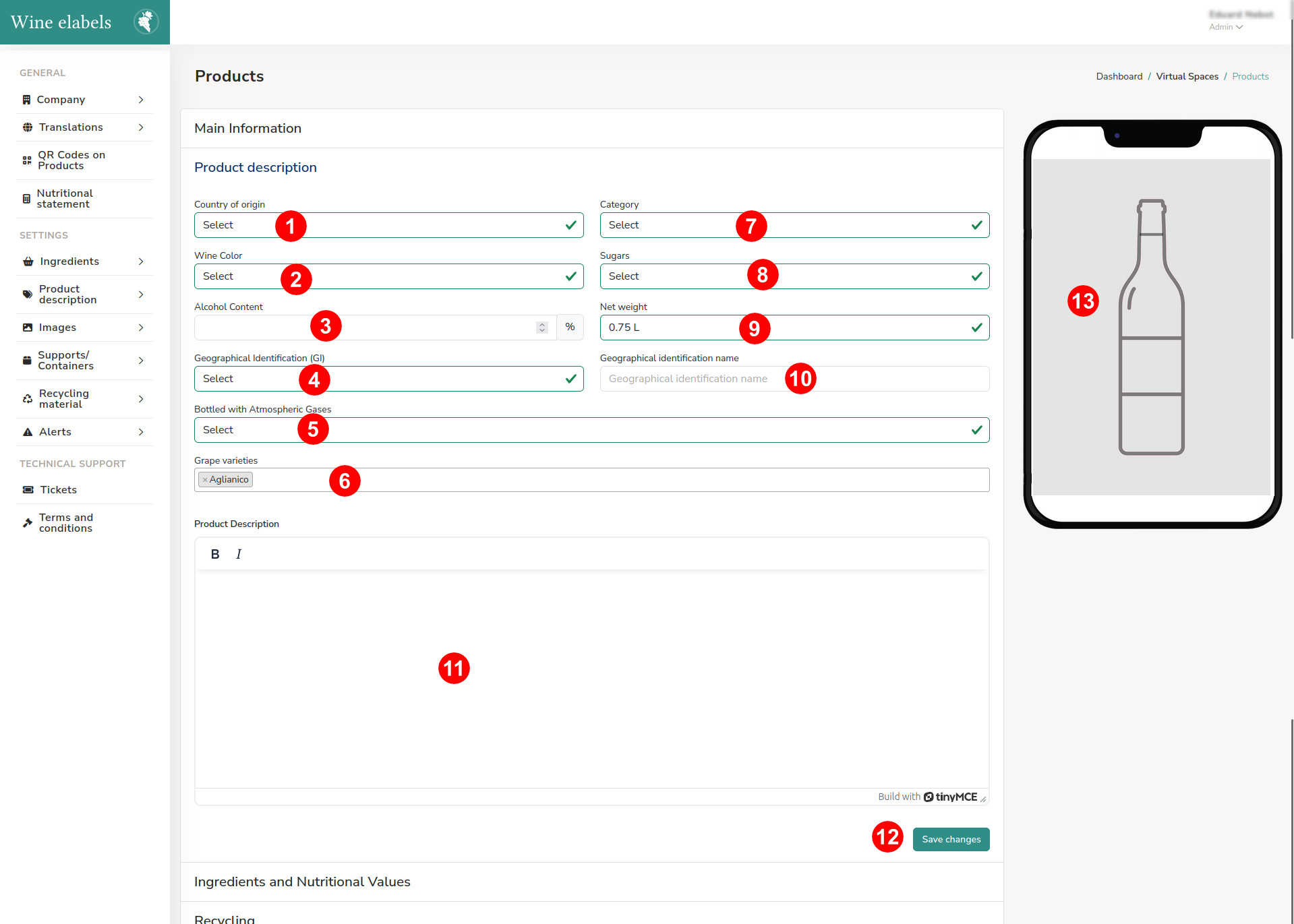
In this block, the descriptive information of the wine is configured, from its country of origin to the final description of the product. Most of the fields are completed via dropdown lists to facilitate editing.
Available fields:
- Country of origin (1) – dropdown list
- Wine color (2) – dropdown list
- Alcohol content (3)
- Geographical identification (4) – dropdown list
- Name of the geographical identification (10)
- Bottled with atmospheric gases (5) – dropdown list
- Grape varieties (6) – dropdown list
- Category (7) – dropdown list (eg.: wine, sparkling wine, etc.)
- Sugars (8) – dropdown list (eg.: brut, brut nature, dry, etc.)
- Net weight (9)
- Product description (11)
This section allows you to complete all the relevant information of the wine in a structured way for its correct presentation on the platform.
Ingredients and nutritional values
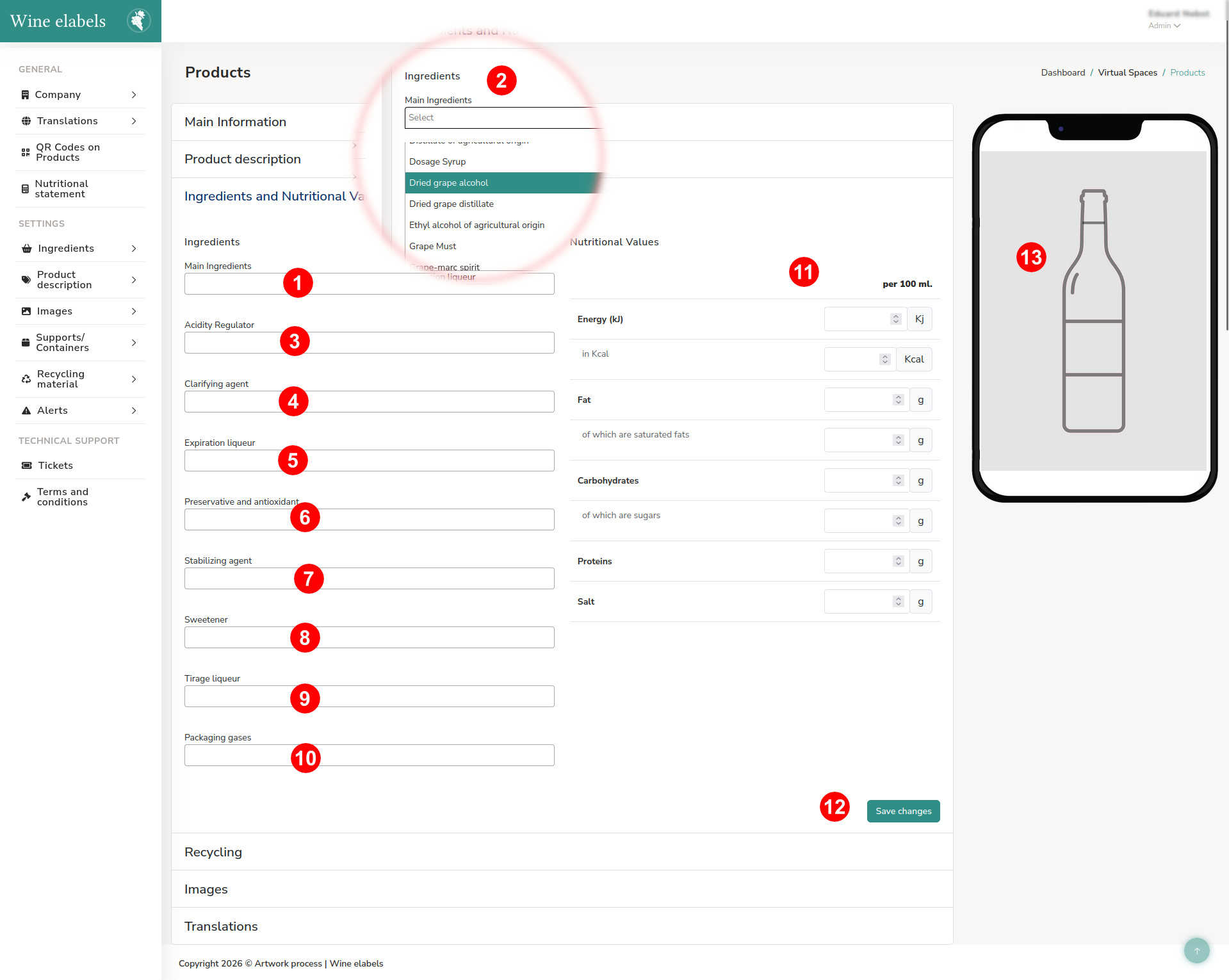
In this block, both the ingredients of the wine and its nutritional values are managed.
In the image, you can observe the visualization of the fields via dropdown lists (2), which facilitates the selection of each element.
Ingredients
- Main ingredients (1) – dropdown list
- Acidity regulator (3) – dropdown list
- Clarifying agent (4) – dropdown list
- Expedition liqueur (5) – dropdown list
- Preservative and antioxidant (6) – dropdown list
- Stabilizing agent (7) – dropdown list
- Sweetener (8) – dropdown list
- Tirage liqueur (9) – dropdown list
- Packaging gases (10) – dropdown list
Nutritional values
The nutritional values are entered in this section and can be calculated previously in the nutritional declaration section.
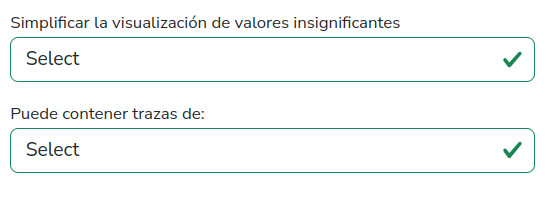
Additionally, two additional options may appear under the nutritional values:
- Simplify the visualization of insignificant values
- May contain traces of…
These options will only be available if they have been previously activated in Settings > Product Description.
Recycling
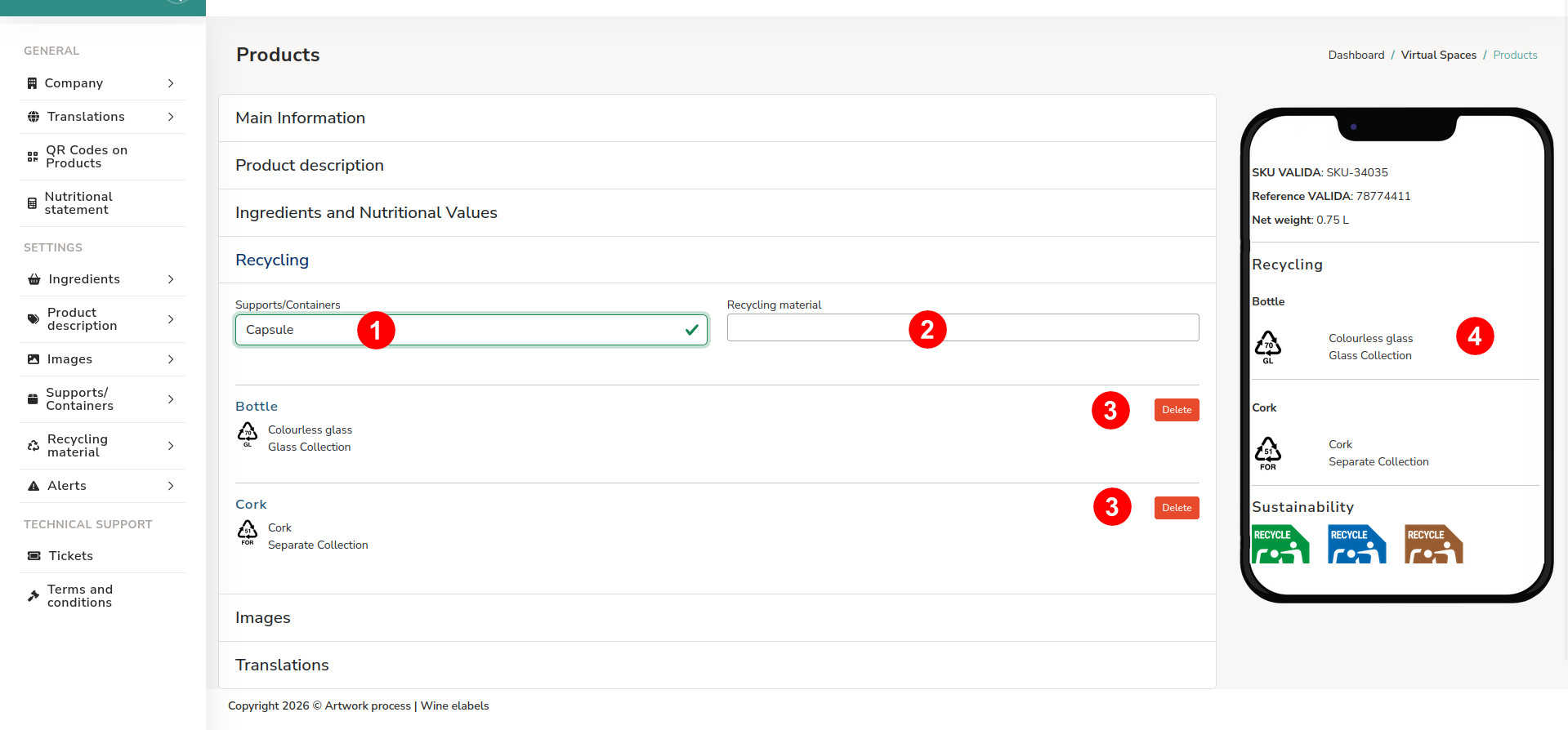
In this section, the information related to the recycling of the product is configured in a simple way.
First, select the container or support (1) and, next, the corresponding material (2). If you want to delete a previously created configuration, use the delete option (3).
Images
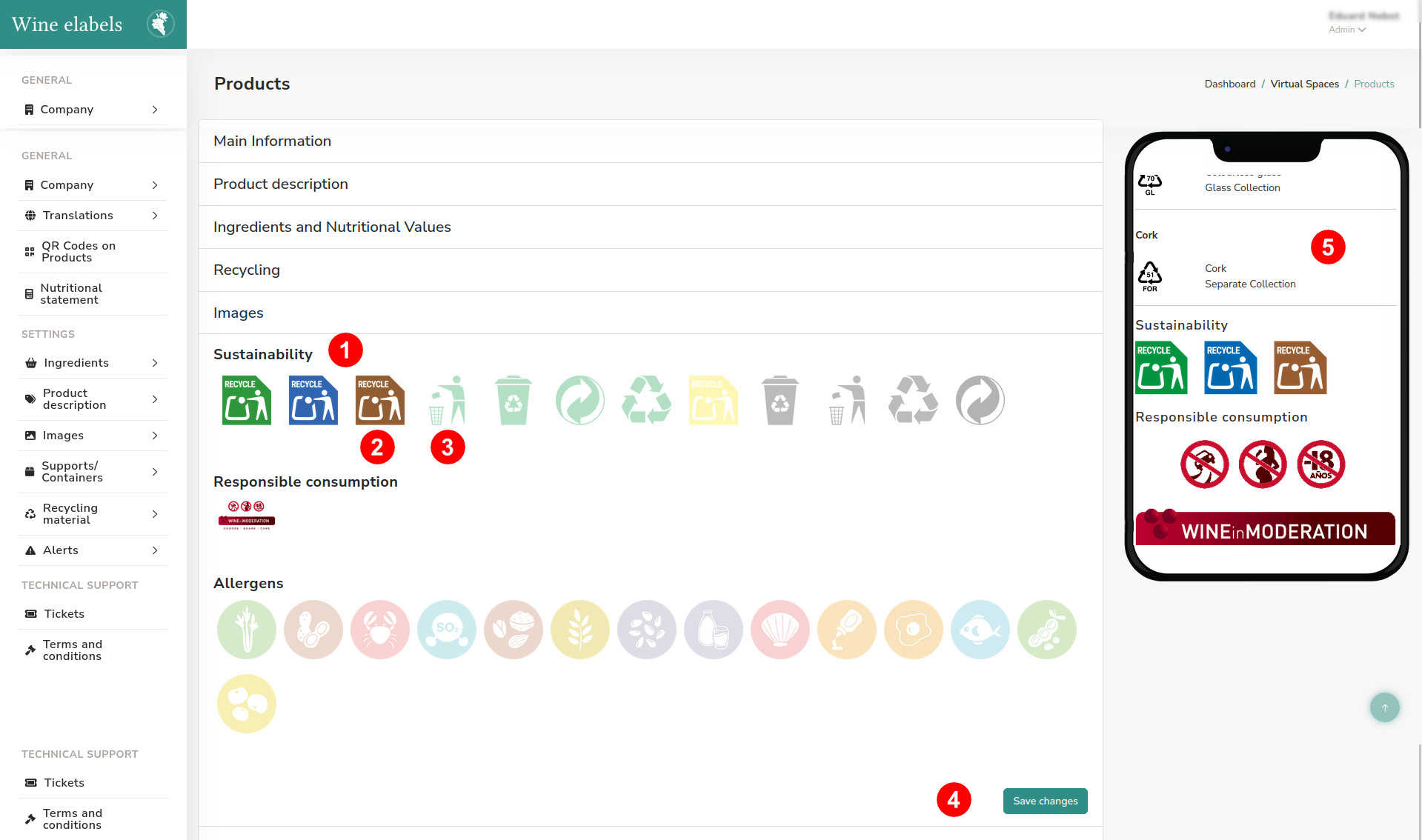
In this section, the informative icons associated with the product, such as Sustainability, Responsible Consumption and Allergens, are managed.
The activated icons are displayed with the color at 100% opacity (2), while the deactivated icons appear in a more muted tone, with less opacity (3), facilitating their visual differentiation.
To reorganize their order of display, simply drag and drop each element to the desired position.
Translations
In this section, the translations of the product description are managed and uploaded, allowing the information to be offered in different languages in a structured and coherent way.