Images
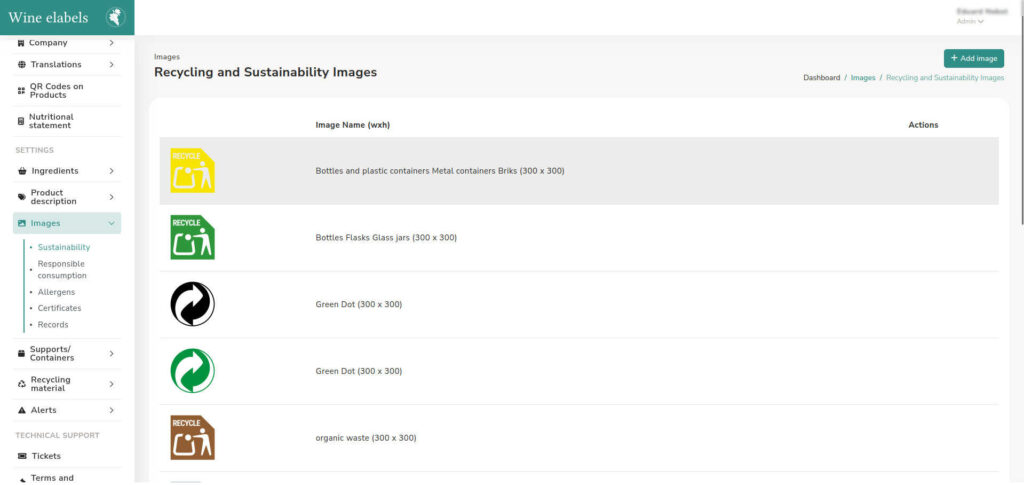
Organize and manage all the images you will use within the application. The system has five specific sections for their storage, which facilitates their classification and later use:
- Sustainability
- Responsible Consumption
- Allergens
- Certificates
- Records and health regulations
It is important to keep the following in mind:
- The images stored in the Allergens section must be correctly assigned to the corresponding allergen.
- In the Certificates and Records and health regulations sections, you can add the registration number associated with the image, although this field is optional.
To manage the images:
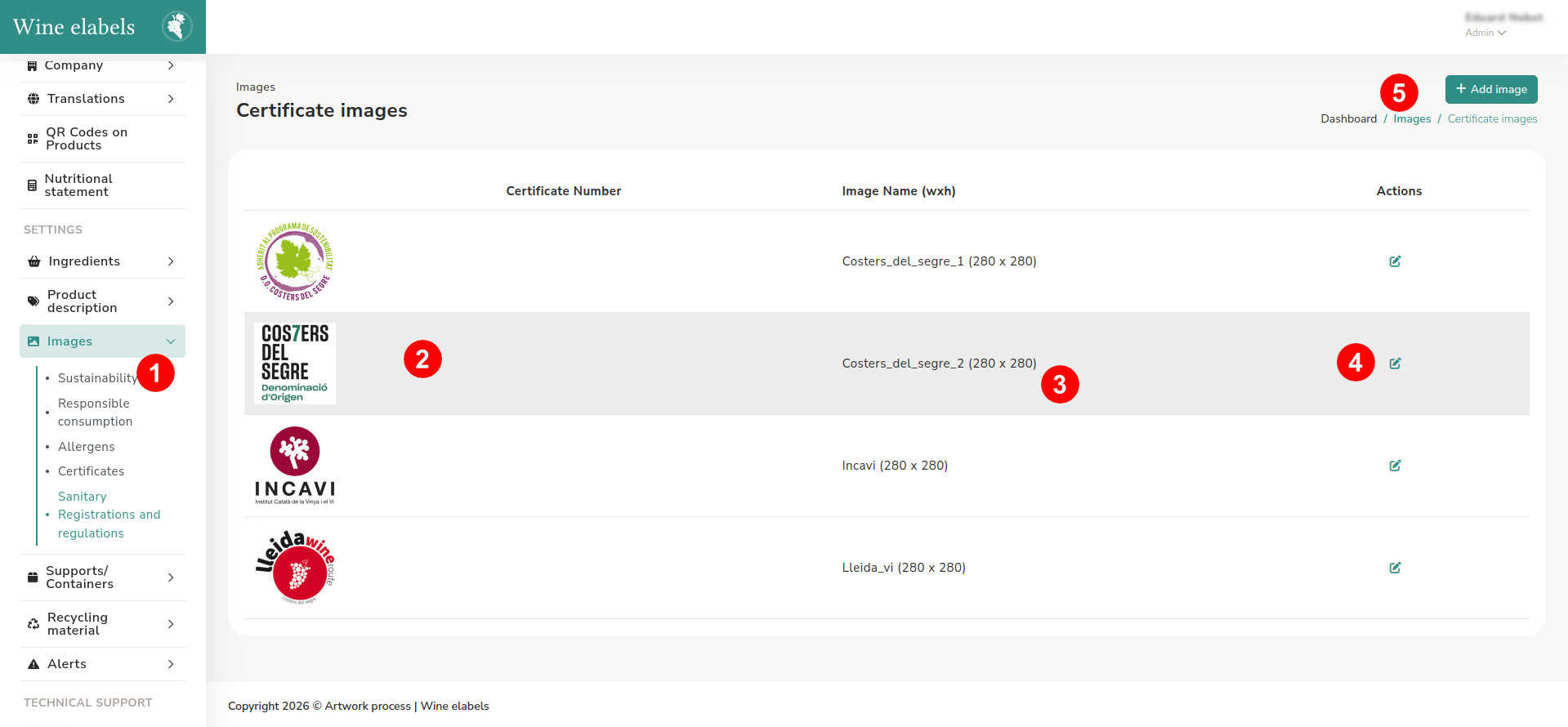
- Access the images section (1) and select the section where you want to store the new image.
- In the list, a preview of each image is displayed. If it has a registration number, it will appear next to the image (2).
- You can also view the file name and its dimensions (3), as well as access the edit option (4).
- Keep in mind that some images are not editable, as they are part of the platform’s database and are intended to speed up the creation of new QR codes.
To upload a new image
- Click on the Add Image button (5), which will open a pop-up window.
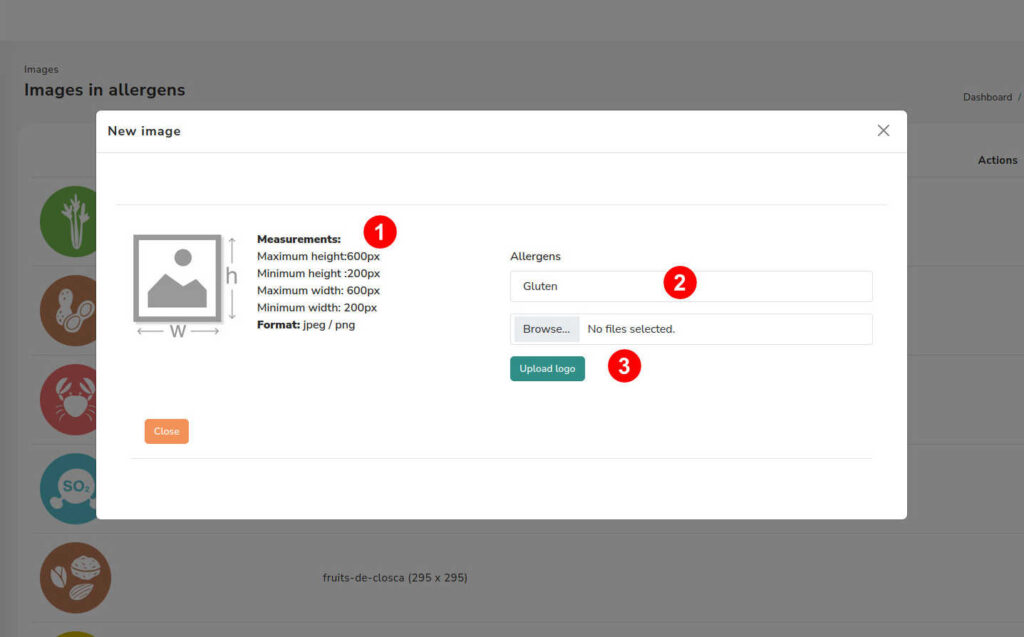
In the pop-up window
- The recommended format and optimal size for the image will be indicated.
- Depending on the selected section:
- In Allergens, a dropdown will appear to associate the image with the corresponding allergen.
- In Certificates or Records and health regulations, a text field will be displayed to enter the registration number (optional).
- Select the image from your device and proceed to upload it (3).
A correct organization of the images guarantees a more efficient and coherent management within the platform.