Ingredients
The platform includes a predefined database with basic ingredients to facilitate initial management. However, the user has the possibility to expand it by incorporating new ingredients according to their specific needs.
The ingredients are organized by categories, which allows for a clearer and more efficient classification. For example, they can be grouped into categories such as preservatives or antioxidants, among others.
Ingredient category management
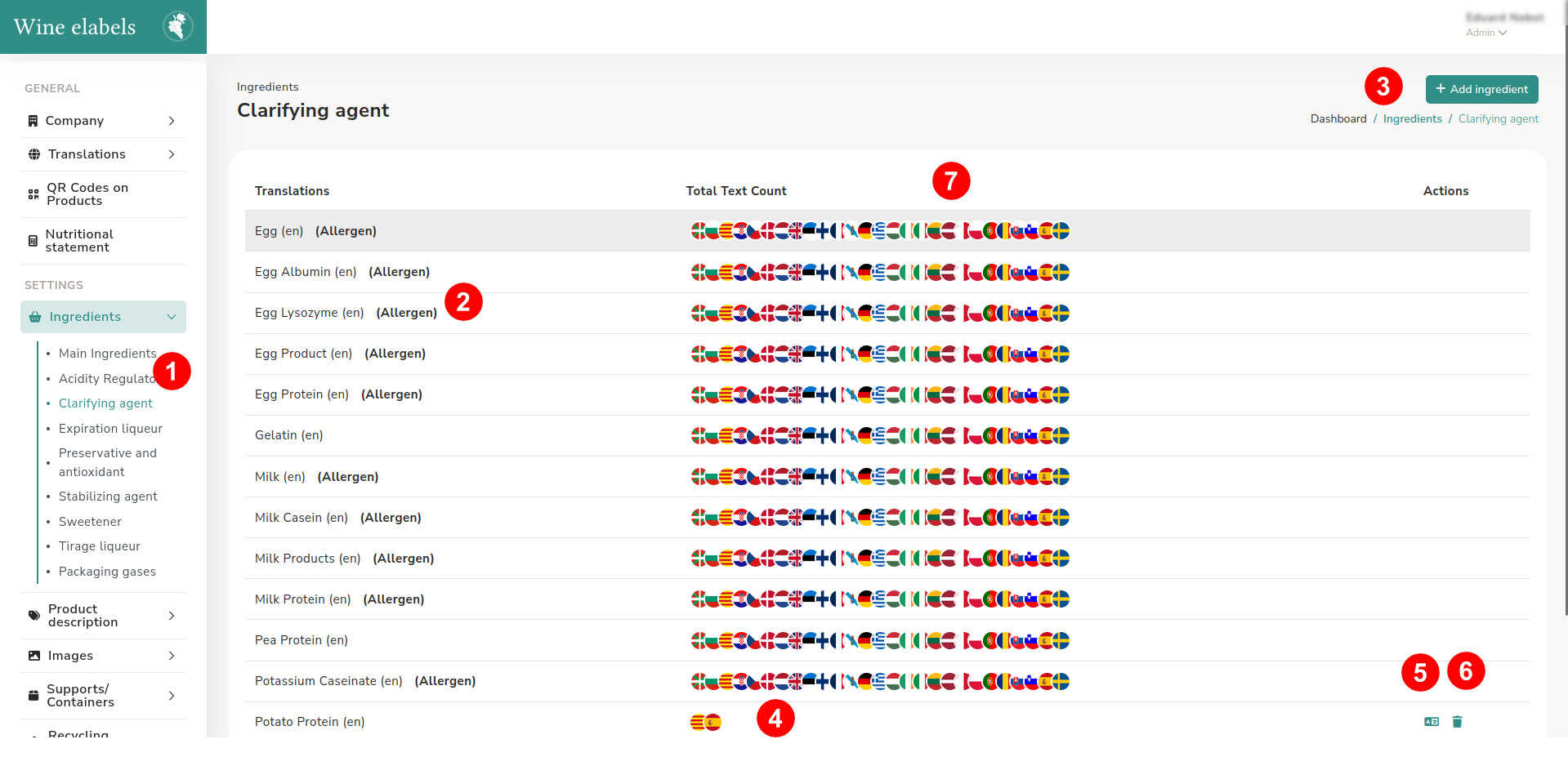
Access the sidebar located on the left side of the screen and select Ingredients > Category (1).
Next, a view will be displayed with the list of available ingredients, where you can check their name (2), the associated languages (7) and the available management actions, such as Translate (5) and Delete (6).
The image distinguishes two types of ingredients: those that can be managed —allowing their translation and deletion (4)— and those that do not allow modifications, since they are part of the application’s own database.
To add a new ingredient, click on the corresponding option (3). Doing so will open a pop-up window where you can enter the necessary information.
Add a new ingredient
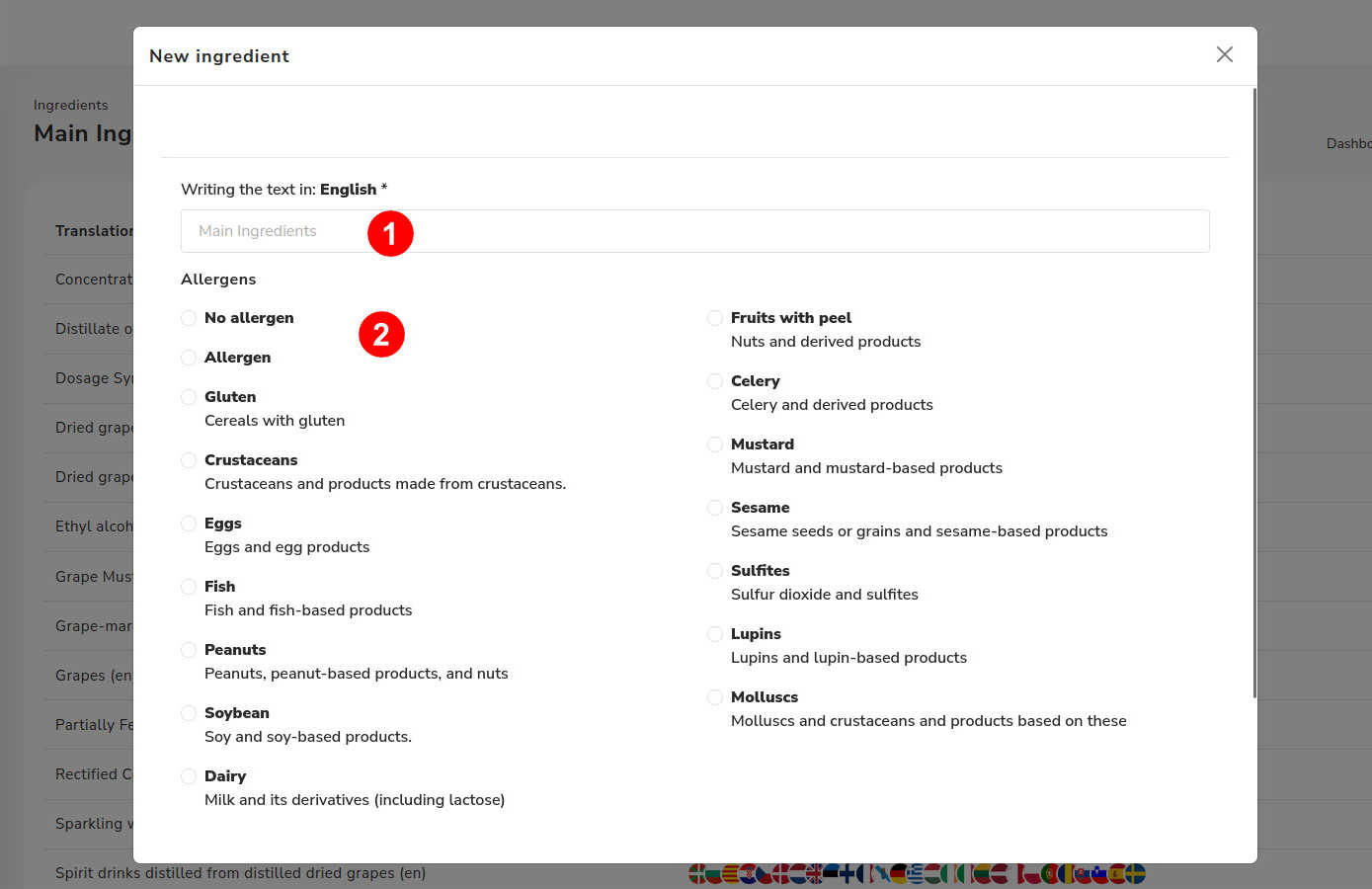
Enter the name of the new ingredient in the corresponding field (1). Next, indicate whether the ingredient contains allergens by selecting the appropriate option (2).
Translate an ingredient
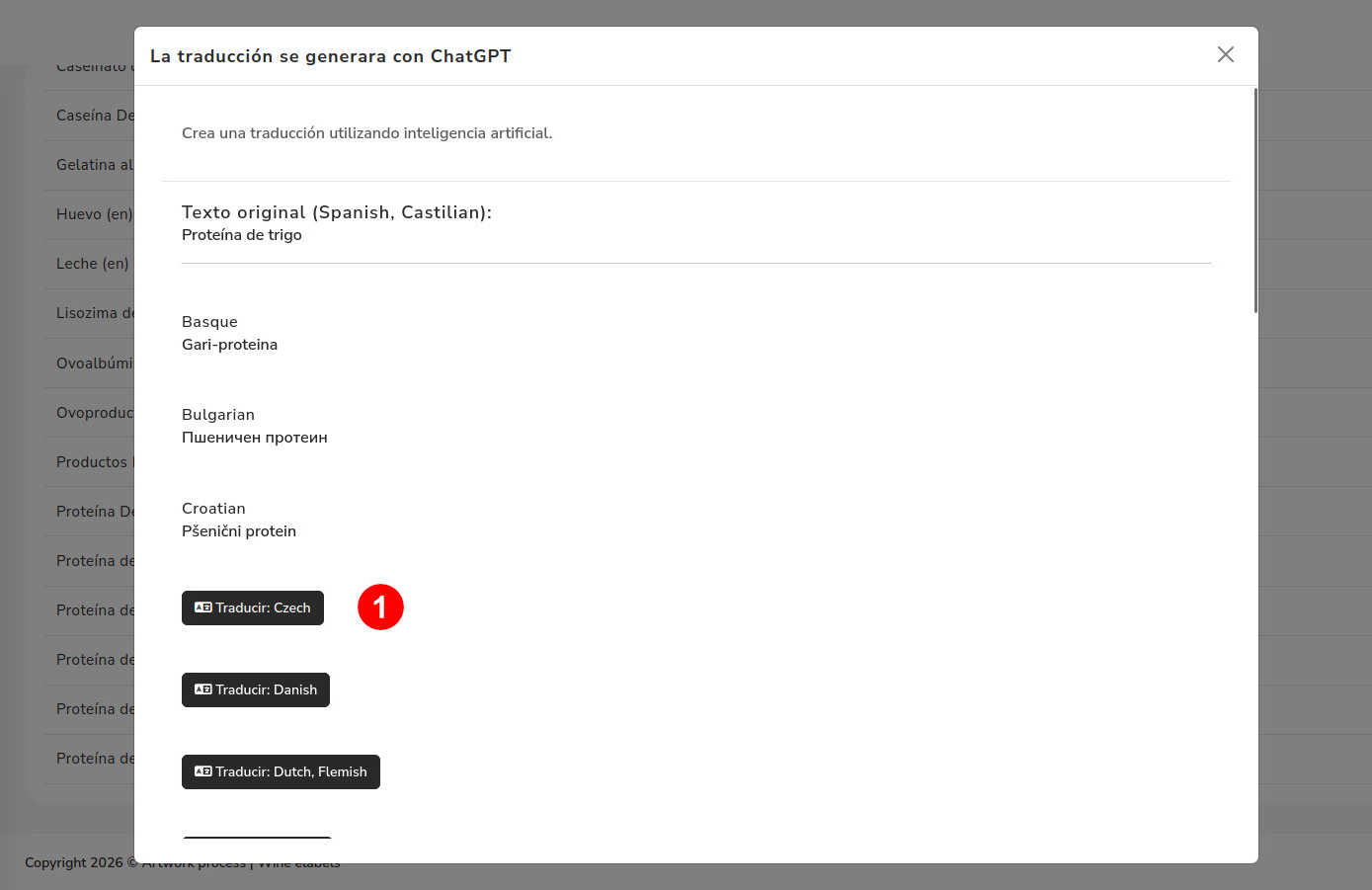
To translate an ingredient, select the Translate option. Doing so will open a pop-up window.
In this window, choose the language you want to translate to (1) and complete the corresponding information.
Delete an ingredient
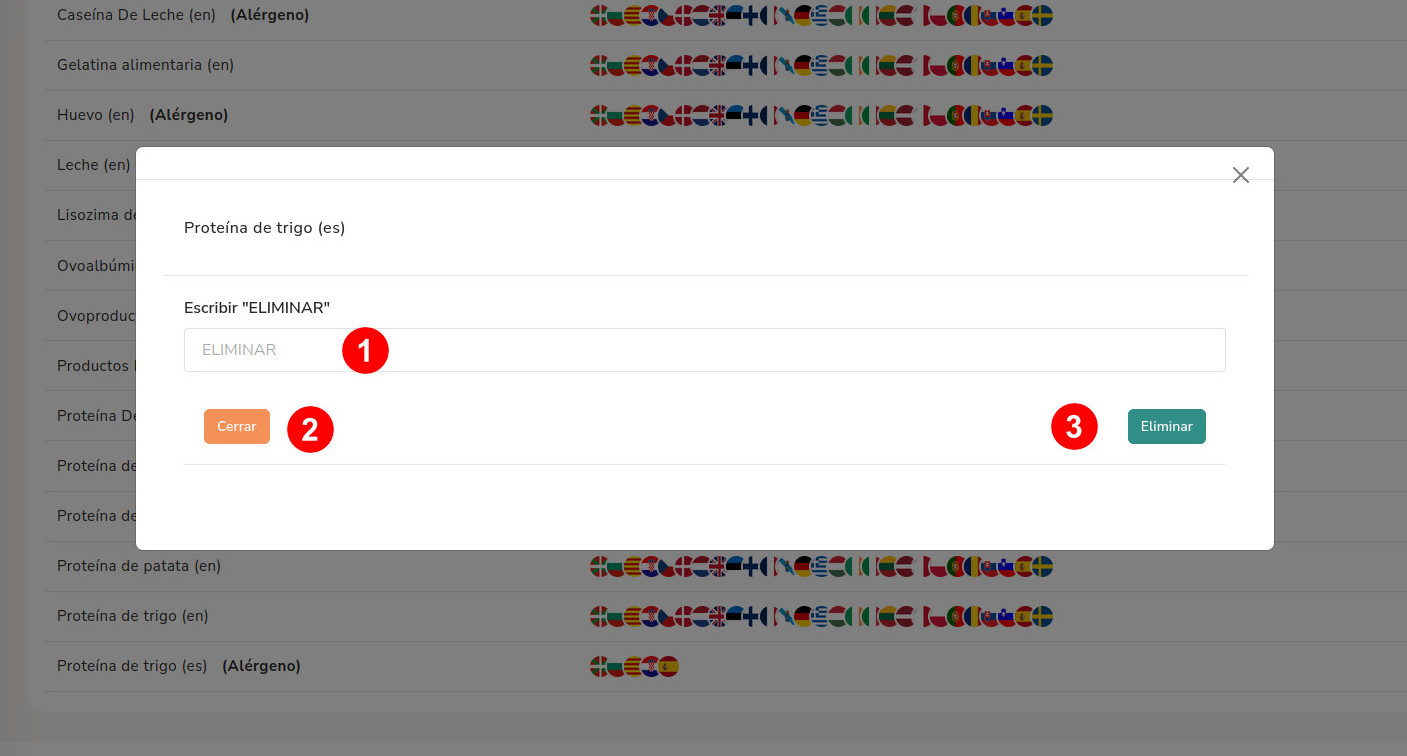
To delete an ingredient, select the Delete action. Next, a confirmation pop-up window will be displayed.
To confirm the deletion, write the word “DELETE” in the indicated field (1) and click the Delete button (3).
If you want to cancel the action, select the Cancel option (2).